
1. Set up your attorney
- Install EZ Voucher from the Chrome Web Store on your computer. Open it from Chrome’s Extensions menu; pin it to your toolbar if you like.
- Choose Create New Account and select Federal CJA under Start with, or sign in to your existing account. Enter the attorney’s first and last name when requested. If Chrome asks to allow access to CJA when you create your account or sign in, select Allow. Confirm your email if prompted. You can also create an account on the web.
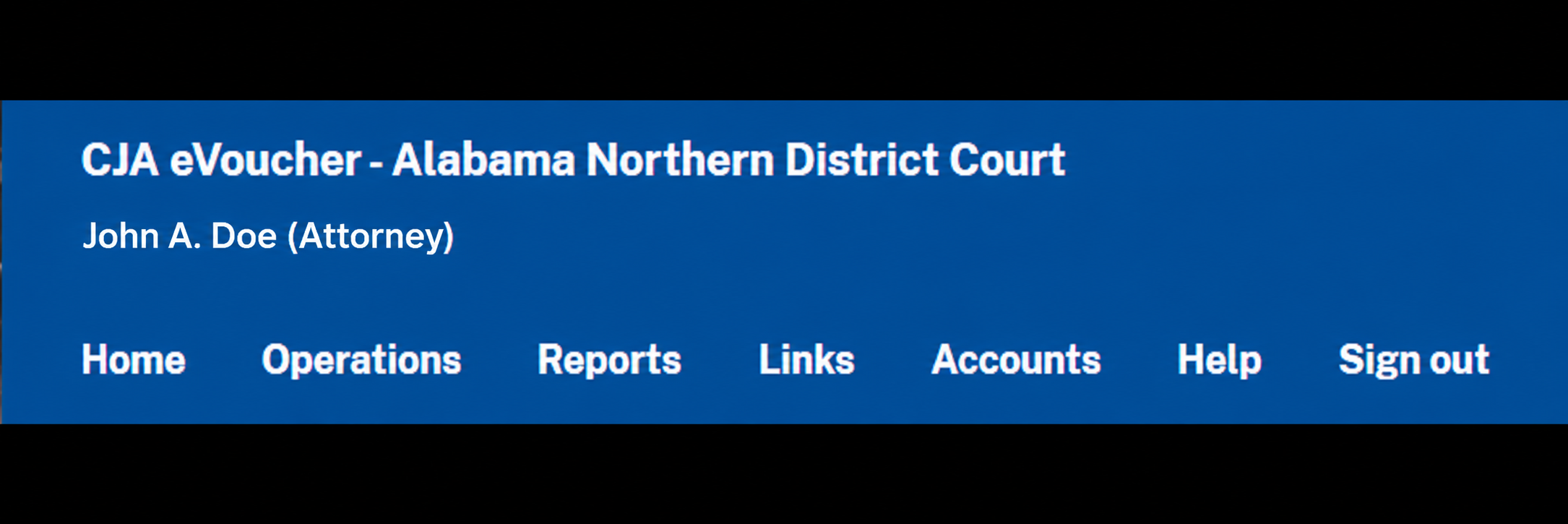
- Select the attorney you are working for and sign in to CJA eVoucher. Use the court finder below if you need a login link. With that CJA page active, open Account & Settings. If prompted, enter the full name shown at the top left of CJA, including any middle name, initial, or suffix, and click Verify CJA name.
Find your court’s CJA eVoucher login
Choose your state, territory, or court type, then select your court. Its official CJA eVoucher login will open in a new tab.
Alabama
Arkansas
California
District of Columbia
Florida
Georgia
Illinois
Indiana
Iowa
Kentucky
Louisiana
Michigan
Mississippi
Missouri
New York
North Carolina
Northern Mariana Islands
Ohio
Oklahoma
Pennsylvania
South Carolina
Tennessee
Texas
Virgin Islands
Virginia
Washington
West Virginia
Wisconsin
U.S. Courts of Appeals
- U.S. Court of Appeals for the First Circuit
- U.S. Court of Appeals for the Second Circuit
- U.S. Court of Appeals for the Third Circuit
- U.S. Court of Appeals for the Fourth Circuit
- U.S. Court of Appeals for the Fifth Circuit
- U.S. Court of Appeals for the Sixth Circuit
- U.S. Court of Appeals for the Seventh Circuit
- U.S. Court of Appeals for the Eighth Circuit
- U.S. Court of Appeals for the Ninth Circuit
- U.S. Court of Appeals for the Tenth Circuit
- U.S. Court of Appeals for the Eleventh Circuit
- U.S. Court of Appeals for the District of Columbia Circuit
If your account has both OIDS and CJA, select Federal CJA-20 as the voucher system when needed. If the CJA status card shows Connect CJA, select it, then choose Allow in Chrome’s prompt.
Already use EZ Voucher for OIDS?
In Account & Settings, select Manage on the attorney’s card. On the account page, select Subscribe on that attorney’s card, then use Add CJA to enter the attorney’s first and last name. Return to the extension and select Allow if Chrome asks for CJA access. If needed, select Connect CJA in the CJA status card, then verify the attorney’s name.
2. Import the bill
Choose or drop a supported PDF, Excel, or CSV bill, then click Load Bill. Compare the entries and hours with the original. If needed, select Bill didn’t load correctly? to choose a billing system and try again.
Does your bill include time you already submitted?
If your billing-system file includes entries from an earlier voucher, Previous interim bill? lets you enter the date billed through before loading. EZ Voucher leaves out every entry on or before that date, so check for unbilled work on those dates. If your file contains only the entries for this voucher, leave the option off. To change the date after loading, select Clear and load the bill again.
This option only filters the file. It does not mark the voucher as an interim claim. Follow your court’s requirements and complete Claim Status in CJA yourself.
3. Review service entries
More about CJA mapping and saved rules →
Select Needs review and follow the prompts for entries needing attention. Choose the correct CJA service type and check the date, hours, and description. Suggested categories are editable, and saved CJA mappings can be reused. Add document numbers and pages when applicable.
If an entry shows 0.00 hours, review it individually. Select Confirm — leave out only if it should be omitted from this import. If the time should be billed, cancel, correct the bill, and load it again. All zero-hour entries must be resolved before submitting.
4. Open the voucher and submit
Open the correct CJA-20 voucher in eVoucher. When possible, start with a new, empty voucher.
 Open the Services tab.
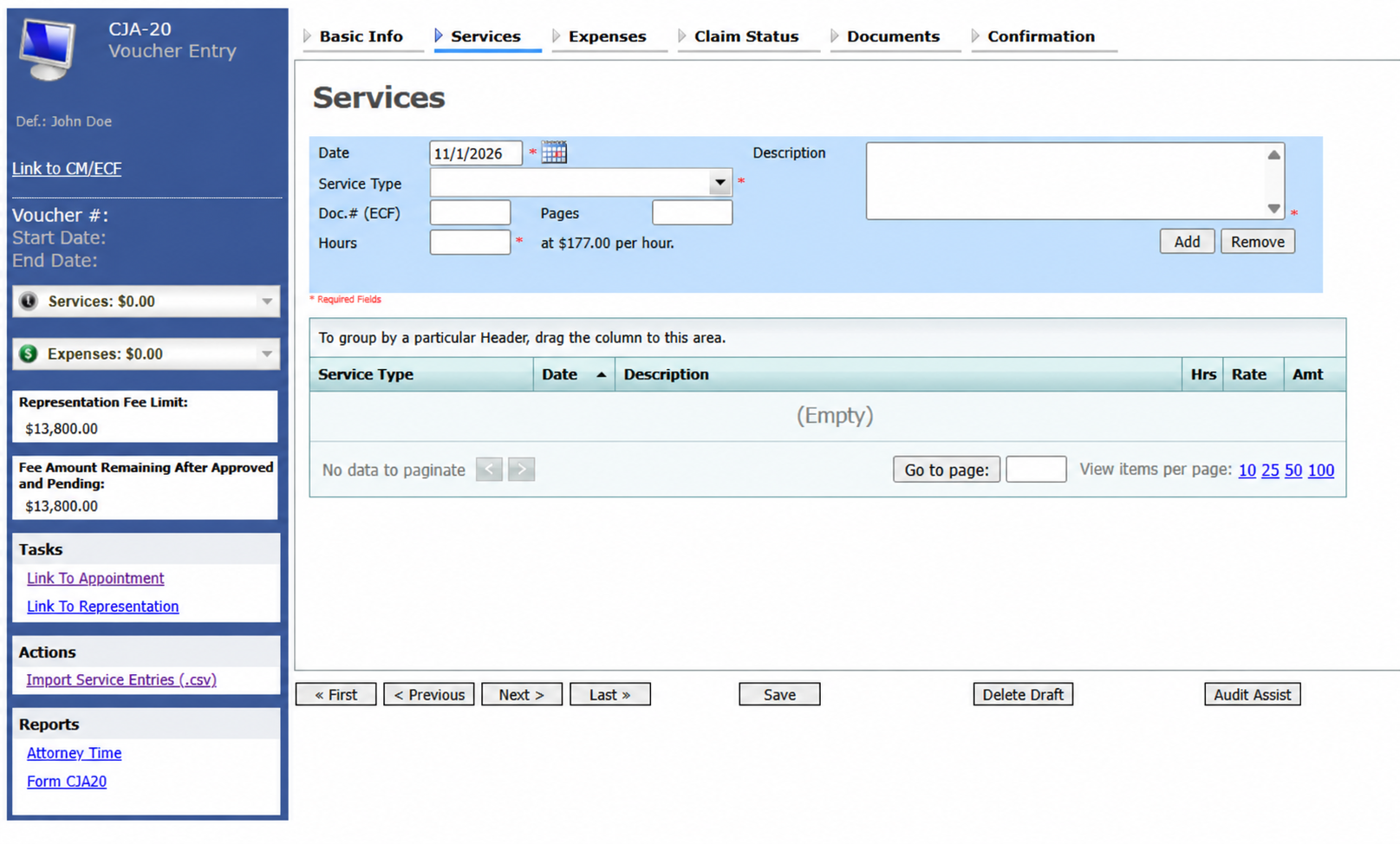
Compare the bill’s case or matter with the open voucher. Back in EZ Voucher, select Submit and review the attorney, case, and replacement confirmation.
5. Check and finish in CJA
Wait for CJA’s response, check the entries in the voucher, and resolve discrepancies. Use Check CJA Entries in 2. Review when needed. The attorney reviews, certifies, and submits the final voucher in CJA.
CJA-30 vouchers and expenses are outside this release. Contact support@ez-voucher.com for help; do not send passwords or confidential client information.